
Basics in English
Perfilado de sección
-
-

Installing Zotero
Zotero is an Open Source application and freely available. You can use Zotero even if you are not studying or working at ZHAW.
To use Zotero, you need to install the Zotero desktop application and the Zotero Connector for your browser. When you install Zotero, the Zotero Add-in for Word or LibreOffice is usually installed automatically as well.
- Install the Zotero desktop application, to make use of all its features, in order to manage your literature
- Install the Zotero Connector in your browser, to easily save literature in Zotero
- Install the Zotero Word Add-in, to quote your literature in a document
The Zotero desktop application is available for Windows, Mac and Linux. There is also an iOS app. However, it does not offer the same range of functions as the desktop version. For example, citing in text documents is not possible.If you are using a private device, you can download the Zotero application along with the Zotero Connector for your preferred browser (Firefox, Chrome, Edge, Safari): www.zotero.org/download .Important: Both components need to be installed separately (not applicable for Safari)
Installation for Windows (video in German, English subtitles)
Installation for Mac (video in German, English subtitles)
When using a ZHAW device, you can get the Zotero application from the Softwarecenter. You will get the up-to-date version. The Zotero Connector needs to be downloaded separately from the Zotero website.Note: Video in German (English subtitles)
Keep in mind that the Zotero Add-In for Word / Libre Office is not always installed automatically. Install it by following these steps:
- for Windows: Edit – Settings – Cite – Word Processors
- for Mac: Zotero – Settings – Cite – Word Processors
Is everything installed?Do the Zotero Check! -

Navigate in Zotero
Note on updates: Zotero routinely releases new versions. We recommend that you update Zotero on a regular basis. In Zotero, select Help - Check for Updates to install a new version. Your current version can be found in Zotero under Help - About Zotero. Changes and adjustments to new versions are available here: https://www.zotero.org/support/changelog
-

Setting up Zotero
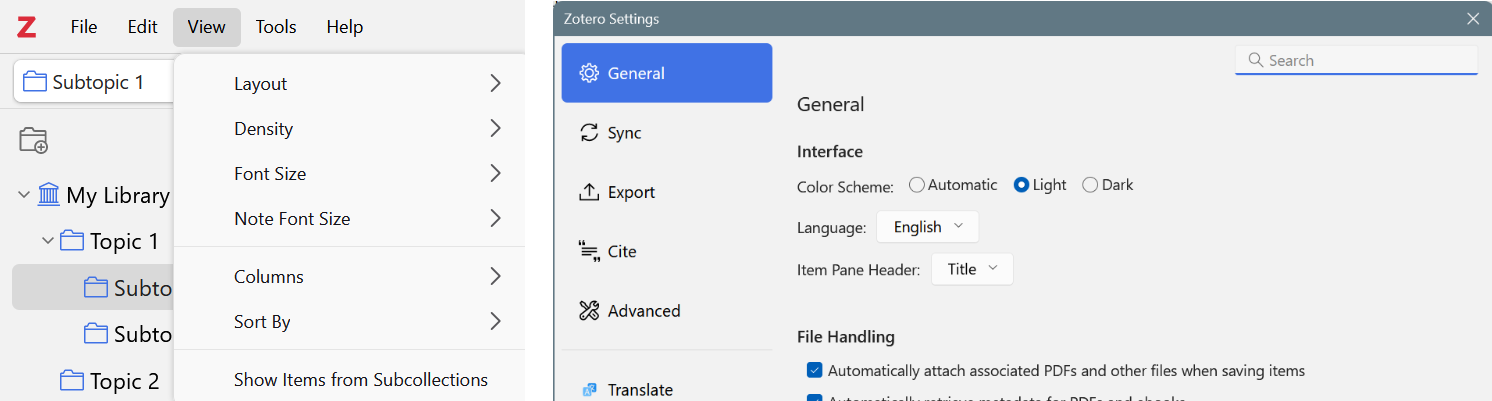
In the View menu, you can modify the layout and font size, among other settings. The language can be changed under Settings. In general, you should be fine by working with Zotero's default settings.
- Windows: Edit - Settings
- Mac: Zotero - Preferences
Where does Zotero save my data?
Zotero saves the library (entries, attachments such as PDFs) in a file on your device.
You can find the storage location in the settings under Advanced - Files and Folders. By default, a Zotero folder is created in the user profile on your device. Feel free to select a custom folder. Do not make manual changes to this folder! As long as you have access to this folder, your Zotero library can be restored at any time—for example, after reinstalling Zotero.Zotero recommends to store the Zotero library locally on your device and not using a server (e.g., team drive) or a cloud folder (e.g., Google drive, OneDrive, Dropbox, etc.) as the storage location. To back up your data or use it across multiple devices, you can use Zotero’s synchronization feature.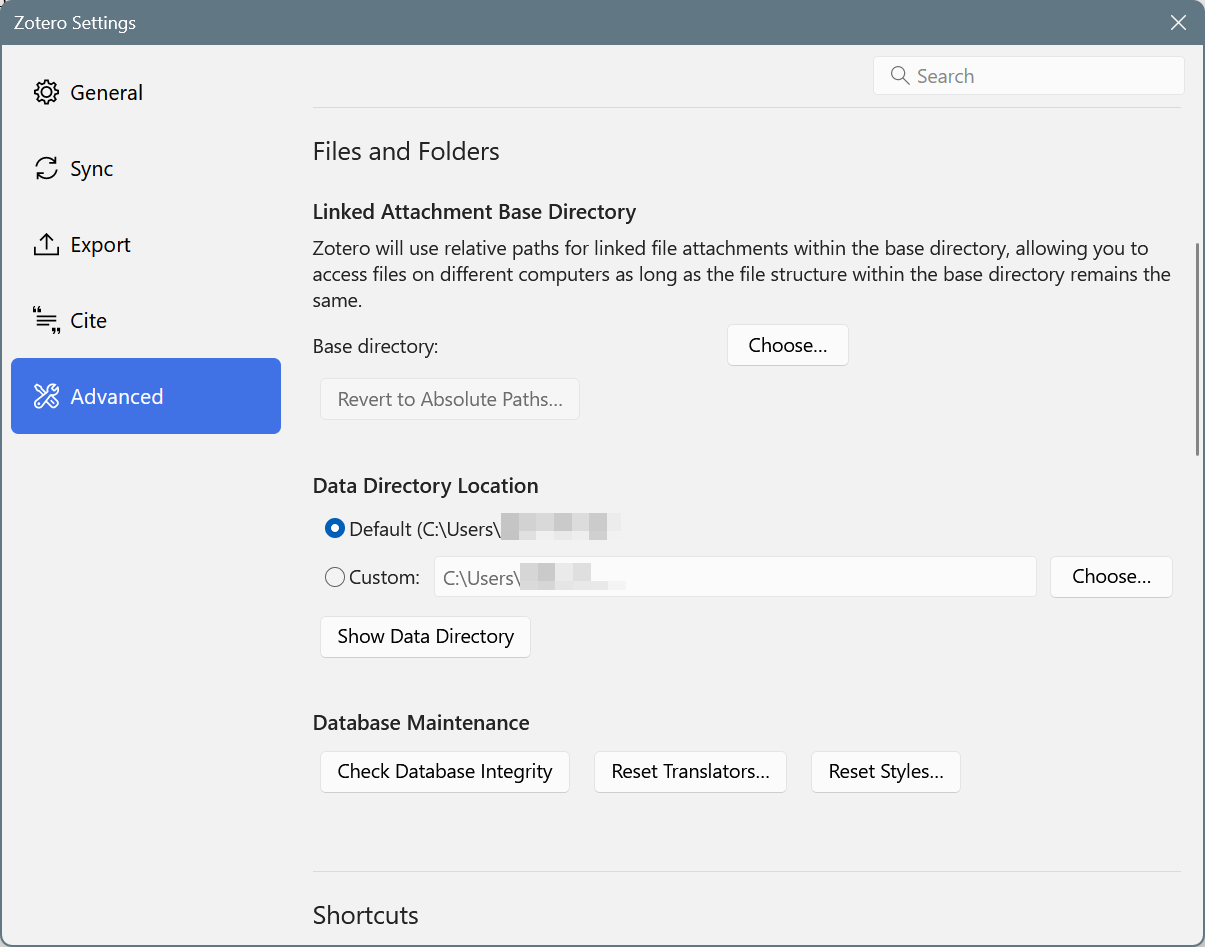
We recommended to set up synchronization. This way, your Zotero library is backed up online, accessible on multiple devices, and you can collaborate in groups. Members of ZHAW have unlimited storage space in the Zotero cloud. The only requirement is that your ZHAW email address is linked to your Zotero account. -

Saving literature in Zotero
Collect the literature you find in Zotero. The easiest way to do this is directly during your research using the Zotero Connector in your browser.
Note: Video in German, English subtitles
With Zotero Connector
With the Zotero Connector, you can save the documents you find directly to your Zotero library while doing online research. From a wide range of search tools (e.g., library catalogs), Zotero can automatically capture the bibliographic information—and, in some cases, even the associated files.
Important: Always check what Zotero has imported automatically! Only if the fields are filled in correctly and completely will you be able to cite the entries accurately later on.The Zotero Connector is located in the top-right corner of your browser window:

In the Zotero application
In the Zotero application, you can add items manually (for example, if no metadata is available for the document), automatically capture items using an identifier (ISBN, DOI, etc.), or import larger datasets.
Adding items manually
- Items can be created manually in Zotero. First, choose the appropriate item type (=type of publication).
- Fill in all the relevant fields for your bibliography.
- Different fields are available depending on the item type. These will be used later according to the selected citation style.
Via identifier
If an identifier (ISBN, DOI) is available, an item can be generated using it. Click on the magic wand and enter the identifier.
Import PDFs
Automatically generate items for PDFs, if Zotero finds usable information in the metadata.
PDFs that you have opened in the PDF-Viewer of your browser, can be saved in Zotero via PDF symbol of the Connector or by right-click.
Hint: Sometimes this does not work. If that is the case, you might need to download the PDF and manually import the file to Zotero.Drag and drop PDFs that are already on your device into a selected collection or My Library and save them this way.If your PDF has no retrievable metadata, you will need to create a "Parent Item" with the bibliographic details of the PDF:
Right-click on your entry - Create Parent ItemImportant: Without the parent item, Zotero has no information about how to cite the document.For further information, head to the Zotero support page.If you would like to add a PDF to an already existing item, you can choose from these options:- with drag & drop on the relevant item (it takes precision to do so)
- by adding it as an attachment
Import from a file
You can import and export items from bibliographic files such as RIS, RDF and Bibtex. This option is particularly useful if you plan to save multiple titles in one go. The file formats supported by Zotero can be found on this Zotero website: How do I import BibTeX or other standardized formats?
-

Citing in general
Important: In order not to violate the copyright law, literature resources must be cited correctly.
How do I cite this?
The information you need in the bibliography depends not only on the type of literature but also on your citation guidelines. There is no ZHAW citation style; please follow the guidelines of your degree programme.
The citation style of the American Psychological Association (APA) 7th ed is widely used. It is based on the Publication Manual of the American Psychological Association. The current edition is the seventh (7th ed.) from 2020. The manual is available in print at the library. There is currently no e-book version. However, numerous resources can be found online:
- APA Style: numerous rules and explanations from the official page
- APA Style Reference Examples: Examples and rules for the most common publication types
- Common Reference Examples Guide: Examples of the most common publication types
- Reference Guide: Citation examples for books, chapters from edited volumes and journal articles
- Creating an APA Style Reference List Guide: Guidelines for the bibliography
- Academic Writer: Online portal, which supports you while using APA 7th ed. (access via ZHAW network).
-

Citing with Zotero
How do I add literature to a document?
Once you have collected literature in Zotero, you can add it into your paper: as an in-text citation and as a bibliography that updates itself automatically. For this, you need the Zotero add-in for Word or LibreOffice. Currently, this add-in is only available for the Word desktop version and not for Word Online or the Word app on iOS/Android.
Note: Video in German (English subtitles)
Zotero must be open so that the word processing programme can access the data from Zotero.
-

Organise your literature and library
With Zotero, you can keep track of your collected literature.
- Organise your library with collections and tags.
- Maintain your library by adding missing attachments and deleting duplicate items.
- Create links between items.
- Use various search options once your library has become too cluttered.
-

Reading and knowledge management
Read texts directly in Zotero, if you saved a PDF or snapshot. Highlight important passages, add comments, and transfer everything into a note that you can continue working with.
Double click an item with attachment (PDF, EPUB, snapshot) and it will open in a new tab in Zotero. The reader offers you a variety of functions.
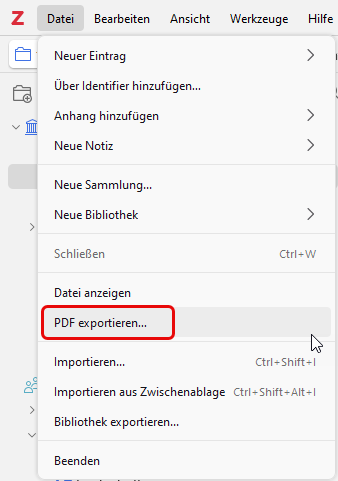
By default, PDFs, EPUBs, and snapshots open in Zotero's built-in reader. You can choose a different PDF reader to open your PDFs: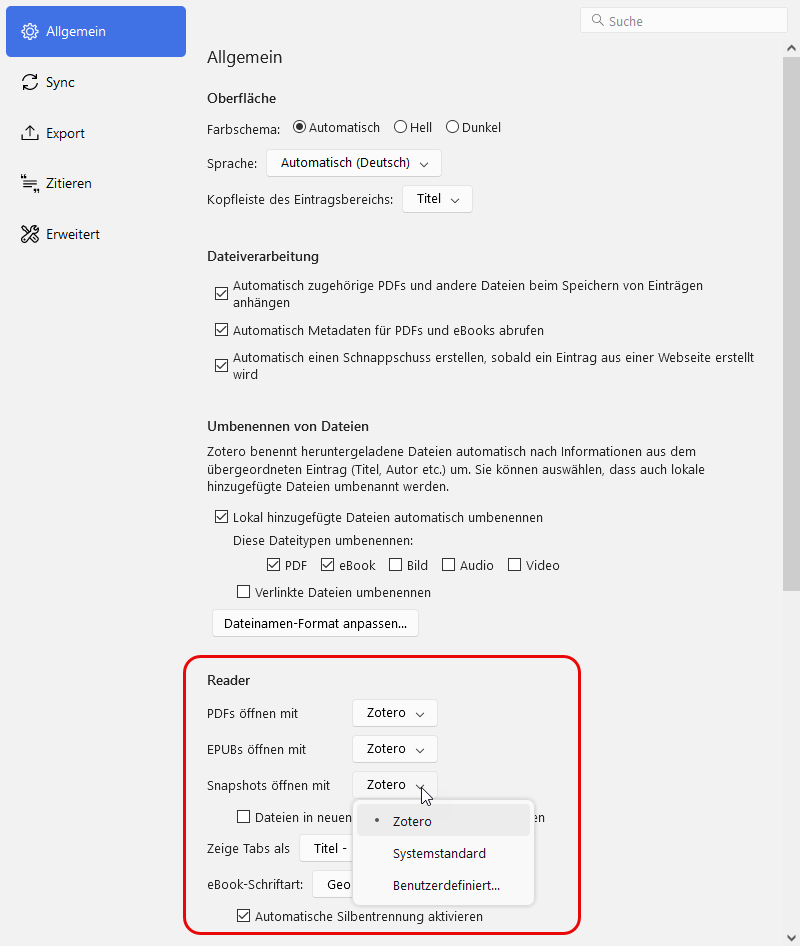 If you have highlighted text sections and added comments in PDFs using the integrated reader, you can export these PDFs to save them elsewhere, share them, or open them in another program. In the Zotero library, select an item with a PDF and click on File - Export PDF.
 It is possible to open the PDF in a new window to view your Zotero library at the same time. Right-click on an item with a PDF and select Open PDF in New Window.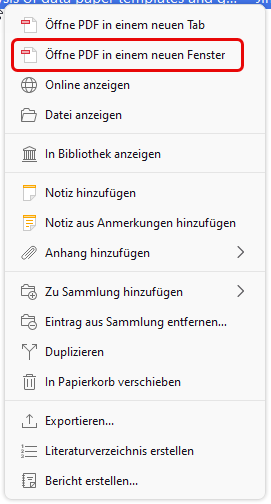
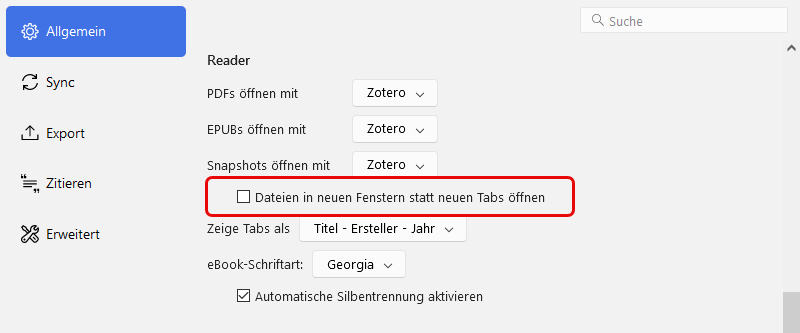
If you want to open files in a new window by default, you can adjust this in the settings.
-

Synchronise the library
You can use your Zotero library on multiple devices and synchronise online. How to setup the synchronisation:
- Create a Zotero online account. The registration is free of charge, you only need to enter an e-mail address and choose a user name. Hint: Use your ZHAW e-mail address (@students.zhaw.ch or @zhaw.ch) for registration and receive unlimited storage space.
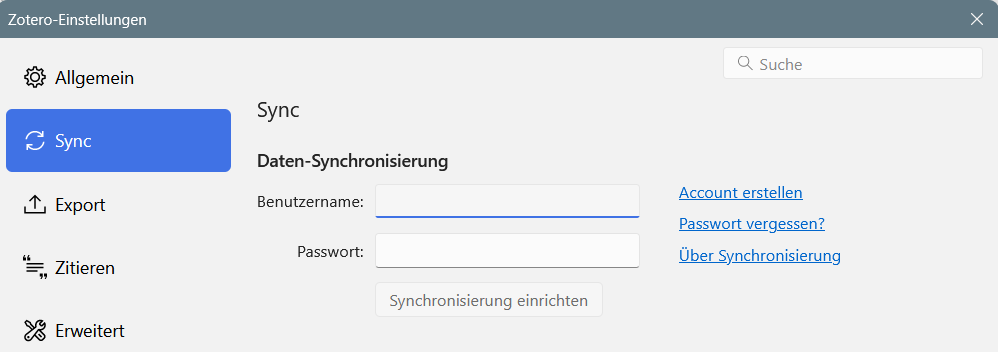
- Log-in to Zotero in the Settings Menu under Sync, by using your Zotero credentials.
 on the top right area.
Further information on this topic can be found here:
https://www.zotero.org/settings/storage -

Collaborate in groups
Create group libraries in Zotero to collect literature, read texts, share ideas, and collaborate on a paper.
Group libraries are standalone libraries. You can find these in Zotero under Group Libraries. The management of group libraries (create groups, invite members) is possible with your Zotero account:
www.zotero.org/groups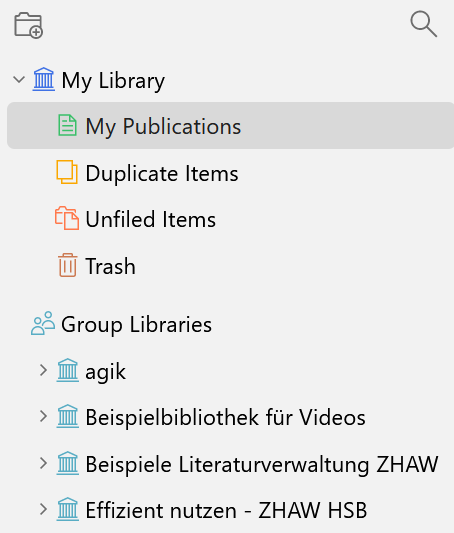 In order to use group libraries, you need a Zotero account. Group libraries are online libraries, which can be shared with other people. You can synchronise their content on your own device, after you indicate your Zotero account information under Settings - Sync. Synchronising the library.
The storage space is only calculated for the group admin, not the group members. ZHAW members have unlimited storage space iBy default, all group libraries of which you are a member of are synchronised.
If you only want to synchronise selected group libraries, you can remove the ones you do not need in the settings under Sync and Choose Libraries.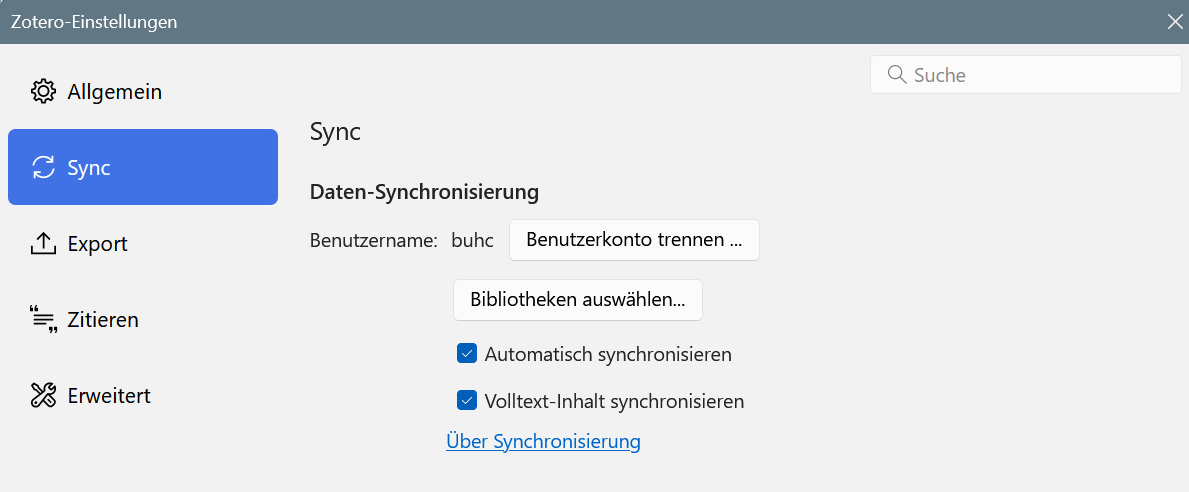
-

Visit a course
Would you like to get an introduction to Zotero or practice working with Zotero? Book one of our Zotero courses!
The ZHAW library regularly offers Zotero training sessions:
Introduction to Zotero Reference Management
You learn how to use Zotero for your studies or work.- You know the most important settings in Zotero.
- You learn how to collect and organise literature resources.
- You learn how to cite in Word.
- You know how to synchronise your literature resource on multiple devices and how to collaborate with group libraries.
Zotero effizient nutzen (only in German)
You already know Zotero and would like to extend your knowledge of the reference management programme.
Exchange and exercises about the following topics:- Saving resources in Zotero and organise your Zotero library
- Working with PDFs, creating notes and citing with Zotero
-

Ask us
Do you have a question or do you need support? Please contact us!
Write to us: literaturverwaltung@zhaw.ch Have a look at the forum Book an appointement (also available in English): Zotero Support
Zotero is supported by the ZHAW library.
-

Additional resources
Zotero is an open source program and is supported by an active community.
You can find numerous information resources on the Zotero website, partially in German. The English versions are usually more detailed and up-to-date:- Quick Start Guide: Zotero basics
- Documentation: official documentation at zotero.org
- Zotero Knowledge Base: Zotero FAQ
- Getting Help from Zotero
Aside the video tutorials by the ZHAW (in German) , there are many further videos and courses about Zotero in other platforms like YouTube.
-